How to Speed Up a Slow Laptop: Free Fixes for Windows 11
How to speed up a slow laptop with free, beginner-friendly steps for Windows 11 and 10, from startup apps to disk space, plus when an upgrade makes sense.
You can often make a slow laptop faster for free by turning off startup apps, clearing storage space, installing updates and scanning for malware. Windows already includes the tools you need, so skip paid “cleaner” apps. This guide shows how to speed up a slow laptop on Windows 11, safest fixes first. It also covers Windows 10 and when an upgrade makes more sense.
What you need before you start
- Your Windows version. Type
winverinto Start search and press Enter, or open Settings > System > About. - Your charger plugged in. Updates and some scans can restart the laptop.
- A backup of important files, in case you need to reset Windows.
Menu paths here are as of November 2026. If a setting has moved, search for its name in Start.
Laptop running slow? Find the cause in 2 minutes
Press Ctrl + Shift + Esc to open Task Manager, or right-click Start and choose it there. It opens on the Processes tab, which shows how much of three resources each app uses:
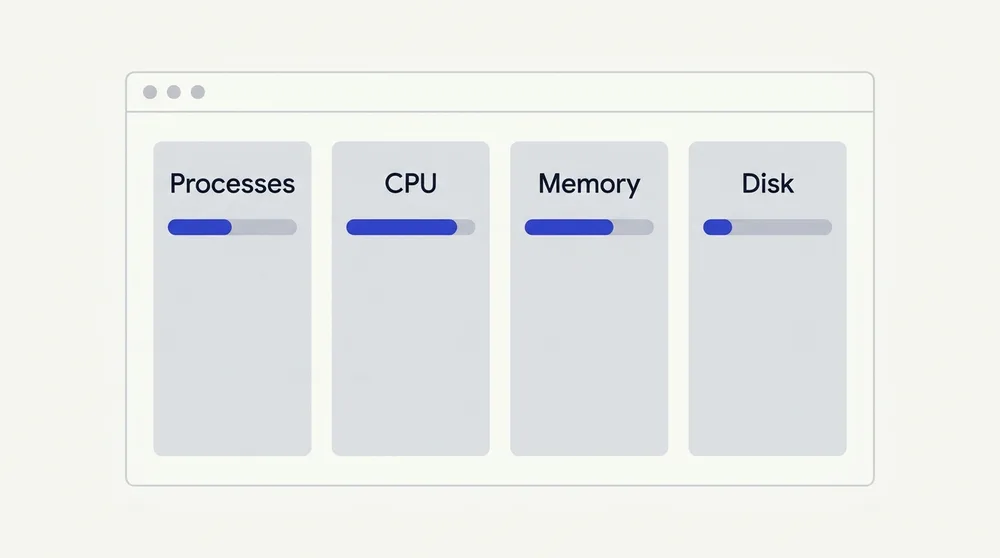
- CPU is the processor, the part that does the work. Click the column header to sort apps by use.
- Memory is the RAM, a short-term workspace for open apps and browser tabs.
- Disk is the storage drive that holds Windows, your apps and your files.
Short spikes are normal. Microsoft treats CPU use that stays at 80% or higher for a long time as a sign of an underlying problem.
Then match what you see to a step:
- One app hogs CPU or Memory: close it if you do not need it, then see Steps 2 and 3.
- Your browser tops the Memory column: Step 5.
- Disk stays busy for long stretches: Steps 4, 6 and 10.
- It is slowest right after you switch on: Step 2.
- It runs hot or the fan is loud: Step 9.
For a closer look at each cause and how to confirm which one is slowing you down, see why is my laptop so slow.
How to speed up a slow laptop in 10 steps
The steps run from safest to most involved.
Step 1: Restart and install updates
Close unused apps and tabs, then restart from Start > Power > Restart. Both are on Microsoft’s list of tips to improve PC performance.
Next, go to Start > Settings > Windows Update > Check for updates. Optional updates, including drivers, sit under Advanced options > Optional updates. On Windows 10, use Settings > Update & Security > Windows Update, then View optional updates.
Tip: Change one thing at a time, then restart and use the laptop normally for a while. That way you know which fix helped.
Step 2: Turn off startup apps
Startup apps open automatically when you sign in, so the more you have, the more is running before you start work.
On Windows 11, go to Start > Settings > Apps > Startup and switch off anything you do not need right away. Or open Task Manager, choose the Startup apps tab, select an app and click Disable. Microsoft gives the same steps for Windows 10, where the tab may be labeled just “Startup”.
Task Manager also rates each app’s startup impact. Microsoft counts an app as High impact if it uses more than 1 second of CPU time or 3 MB of disk at startup. Switch off High-impact apps you rarely use first, but leave your antivirus on, as Dell advises.
This step worked for me. My laptop was on Windows 11 and startup was very slow. When I turned off the startup apps, it made quite a difference.
Step 3: Uninstall apps you never use
On Windows 11, go to Start > Settings > Apps > Installed apps, select More options (the three dots) next to an app, then Uninstall. On Windows 10, go to Settings > Apps > Apps & features, select the app and choose Uninstall.
Look for trial software and extras that came with the laptop. Only remove programs you recognize and know you do not use. Search unfamiliar names first, and leave anything from your laptop’s maker that looks like a driver or system tool.
Step 4: Free up storage space
Microsoft says low disk space can reduce performance and cause trouble installing Windows updates, but gives no target figure. Dell suggests keeping 10 to 15% of a hard drive free and 25 to 30% of an SSD free. Treat that as one manufacturer’s guideline.
On Windows 11, go to Settings > System > Storage, then:
- Open Storage Sense and select Run Storage Sense now. It can clear temporary files and empty the Recycle Bin.
- Open Temporary files, tick what you want gone and select Remove files.
- Check Cleanup recommendations for large or unused files, files already synced to the cloud, and unused apps.
On Windows 10, go to Settings > System > Storage, turn on Storage Sense, and under “Free up space now” choose Clean now. The older Disk Cleanup tool works on both versions: search Start for “Disk Cleanup” and pick your drive.
One warning: cleanup may offer to delete your previous Windows installation (Windows.old). That cannot be undone, and you can no longer go back.
Step 5: Close extra browser tabs and extensions
Close unused tabs, then open your browser’s extensions page and remove any you do not need, as both Dell and HP recommend.
In Microsoft Edge, sleeping tabs put background tabs to sleep after 2 hours of inactivity by default. That frees memory and CPU for what you are using. The setting is under Settings and more > Settings > System and performance > Performance.
Step 6: Scan for malware
Windows Security scans your laptop automatically, but Microsoft still lists a manual scan as a performance fix. On Windows 11, go to Start > Settings > Privacy & security > Windows Security > Virus & threat protection and select Quick scan. On Windows 10, start from Settings > Update & security > Windows Security, then follow the same steps.
For a deeper check, select Scan options. A full scan checks every file and program, so it takes longer than a quick scan. The Microsoft Defender Antivirus (offline) scan restarts the laptop and scans before Windows loads, which helps catch malware that hides while Windows runs. Save your work first.
Step 7: Check the power mode
Go to Start > Settings > System > Power & battery > Power mode. Windows 11 lets you set separate modes for “Plugged in” and “On battery”: Best power efficiency, Balanced or Best performance.
Microsoft notes that Best performance uses more power, drains the battery faster and can make the laptop run warmer. We suggest Balanced day to day, and Best performance only when you are plugged in and need full speed. On Windows 10, click the battery icon on the taskbar and drag the slider toward Best performance.
Skip tutorials that say to force the processor to 100% in advanced power settings. The built-in modes are a simpler, safer way to trade battery life for speed.
Step 8: Reduce visual effects
Search Start for “Adjust the appearance and performance of Windows”. On the Visual Effects tab, choose “Adjust for best performance” and save. Windows 10 uses the same steps. Windows will look plainer, but you can undo it in the same window.
Step 9: Keep it cool
Dell explains that most processors automatically slow down when hot, which is called thermal throttling. Warmth during heavy work such as gaming is normal. Throttling within minutes of light use, loud fans at idle, or freezes and shutdowns point to a heat problem.
Safe steps from Dell’s advice:
- Use the laptop on a hard, flat surface, not a bed, blanket, pillow or your lap.
- Keep the vents and fan intakes clear.
- With the laptop shut down and unplugged, gently blow dust out of the vents with compressed air. Do not open the case.
Watch for a swollen case or keyboard, a burning smell, or a laptop too hot to touch after shutdown. If you notice any of these, turn it off, unplug it and contact the manufacturer. Dell warns that damage from blocked airflow can be permanent and may not be covered by warranty.
Step 10: Check your drive type
Laptops store data on a hard disk drive (HDD), the older type, or a much faster solid-state drive (SSD). Search the taskbar for “defrag” and open Defragment and Optimize Drives to see which you have. The Media type column shows “Solid state drive” or “Hard disk drive” next to each drive.
Windows optimizes drives automatically, once a week by default. Hard drives get defragmented, which puts each file’s pieces back together. SSDs get a trim instead of a defrag, which tells the drive where it can safely clean up when idle. If a hard drive’s schedule was turned off, select it and choose Optimize.
When free fixes are not enough
Microsoft says older PCs may improve only a little and a new device can be the better long-term answer. Consider these options first.
Swap a hard drive for an SSD
HP says an internal SSD can greatly improve performance and boot times. It lists typical read speeds of about 100 to 200 MB/s for hard drives against about 550 MB/s for SATA SSDs. HP sells these parts, so weigh that.
I have been through this one. I had my laptop’s HDD removed and an SSD put in, and the laptop became just like new. Before buying a drive, check your manual or ask a repair shop. Find out whether your model can take one and how your files will be moved across.
Add more RAM
HP calls adding memory a budget-friendly fix for PCs that multitask heavily. As of November 2026, HP suggests 8 GB for browsing, email and streaming, and 16 GB for office work and multitasking. Microsoft’s minimum for Windows 11 is 4 GB.
The catch: HP says thin laptops with LPDDR5 or LPDDR5X memory have RAM soldered to the motherboard, so it cannot be upgraded. Check your model’s specs before buying.
Reset Windows
Go to Settings > System > Recovery > Reset PC (on Windows 10, Settings > Update & Security > Recovery > Reset this PC). Choose Keep my files, which reinstalls Windows and keeps personal files such as documents and photos, but removes your installed apps and settings.
Back up first, and have your BitLocker recovery key ready if your drive is encrypted. The screen may stay black for a long time, occasionally more than 15 minutes. Do not restart by hand, because that can make the reset fail. Microsoft’s Reset your PC guide explains every option.
A note for Windows 10 users
Windows 10 support ended on October 14, 2025, as Microsoft’s Windows 10 end-of-support page explains. It no longer gets free security or feature updates, and Microsoft recommends moving to Windows 11.
As of November 2026, home users can join Extended Security Updates (ESU) until October 12, 2027. ESU is free if you sync your PC settings. Otherwise, it costs 1,000 Microsoft Rewards points or a one-time $30 USD plus tax, and options can vary by region. It adds security fixes only, so it will not make your laptop faster.
Common problems and fixes
- Slow only on battery. Check the “On battery” power mode in Step 7.
- The power mode will not change. A custom power plan may be active. Choose Balanced in Control Panel > System and Security > Power Options.
- Disk stuck at or near 100% in Task Manager. There is no single official cause. Check free space (Step 4), whether an update or scan is running, and whether you have a hard drive (Step 10).
- Hot and noisy during light use. Work through Step 9. Contact the manufacturer if it continues.
- A video says to delete Prefetch files or change msconfig settings. We would skip both. Microsoft warns that wrong settings in System Configuration (msconfig) can make Windows unstable or stop it from starting.
FAQ
How can I make my laptop faster without spending money?
Steps 1 to 4 cost nothing: restart and update, trim startup apps, uninstall unused apps and free up storage. If those are not enough, a reset with “Keep my files” is free too.
Is it safe to turn off all startup apps?
No. Leave your antivirus on, as Dell advises. Switch off the rest a few at a time so you can turn one back on if something stops working.
Will more RAM make my laptop faster?
Only if memory is the bottleneck. If Task Manager’s Memory column stays high while you work, more RAM can help, as long as it is not soldered in.
Do PC cleaner or optimizer apps actually help?
We suggest skipping paid optimizer suites and registry cleaners, since Windows has the tools built in. Microsoft’s performance page points to its free Microsoft PC Manager app in the Microsoft Store and does not mention third-party suites.
Summary
Check Task Manager first, then work through the 10 free fixes in order.
Still slow? An SSD swap, more RAM or a reset with “Keep my files” are the next steps. On very old hardware, a new laptop may be the better buy.