Why Is My Laptop So Slow? How to Find and Fix the Cause
Why is my laptop so slow? Learn how to find what's slowing it down with Task Manager, then apply free, safe fixes before you spend any money.
Why is my laptop so slow? The short answer
If you’re asking why is my laptop so slow, most slow laptops come down to a handful of causes: too many startup programs, full storage, too little memory (RAM), overheating, malware, or missing updates. HP lists the same set of causes, and most of them cost nothing to fix. The trick is to find which one is yours before you change anything.
This post is organized by cause. For each one you get the signs, a quick way to check, and one short fix.
What you will achieve and what you need
You will work out why your laptop is slow, laggy or slow to start up, and fix the cause without spending money. Plan for 30 to 60 minutes, keep the laptop plugged in, and back up anything important first.
The steps assume Windows 11 or Windows 10. Mac users get a short note where it matters, but the Windows menus below will not match your screen.
First, check what is actually busy
Restart the laptop and let any waiting updates install. A restart clears temporary glitches, and it gives you a clean baseline to measure against.
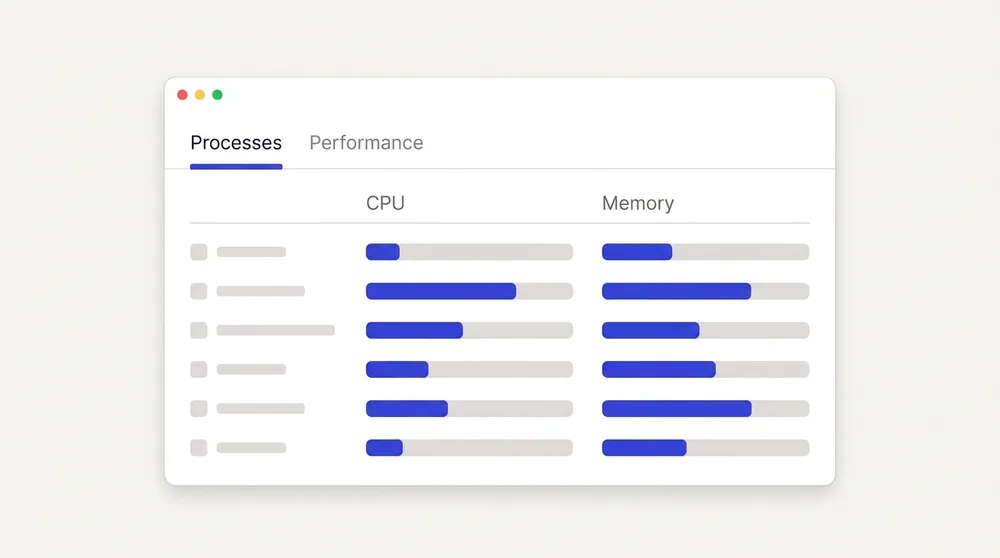
- Press Ctrl + Shift + Esc to open Task Manager.
- Click the Processes tab.
- Click the CPU column header to sort by processor use, then click Memory to sort by RAM use.
- Click the Performance tab to see disk usage.
The CPU column shows how hard the processor is working. Memory shows how much RAM each app holds. Disk shows how busy your storage is. Watch for one app at the top of a column. Also watch for a column stuck at or near 100% while you are doing nothing. Either one points you to a cause below. (Steps from MCC IT Support.)
Common scenario: When a Windows laptop feels sluggish, the cause is often background programs eating resources, full storage or overheating. Sorting Task Manager by CPU and Memory shows you the likely culprit without guessing.
On a Mac, the equivalent tool is Activity Monitor.
Cause 1: Too many startup programs
Signs: The laptop is slow to start up. The desktop appears, but nothing responds for a minute or two. Fans spin up right after you sign in.
How to check: Right-click Start, open Task Manager, and go to the Startup apps tab. Windows 10 and 11 both work this way, and Microsoft explains the tab here.
Fix: Right-click an app you do not need at sign-in, such as a chat app, game launcher or music player, and choose Disable. The app still works when you open it by hand.
Pro tip: Disabling unneeded startup apps stops them from launching every time you turn the laptop on. That frees up resources straight away for what you actually want to run.
A word on what to leave alone. Ordinary apps you installed yourself are fine to disable or close. If you do not recognize a name, search for it before ending it. Anything that belongs to Windows itself should stay. For example, Antimalware Service Executable is part of Windows Defender, and its real-time protection runs from startup to shutdown.
On a Mac, startup apps live in Login Items. Open Apple menu > System Settings > General > Login Items & Extensions.
Cause 2: Full or cluttered storage
Signs: Windows warns about low disk space, saving and opening files takes a long time, and the laptop feels heavy even right after a restart. HP names short storage as a common cause of slowness.
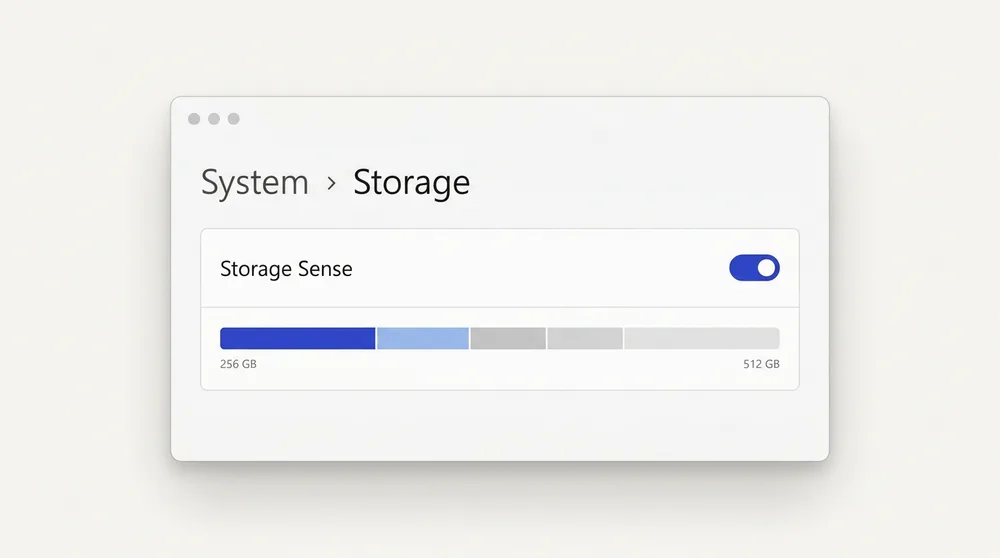
How to check: Open Settings > System > Storage. It shows how full the drive is and what is taking up the space.
Fix: Turn on Storage Sense (Settings > System > Storage > Storage Sense) to clear temporary files automatically. Microsoft also lists the older Disk Cleanup tool, cleanmgr.exe, if you prefer it. Then uninstall programs you no longer use and move large photos or videos to an external drive or cloud storage.
If your laptop has a traditional hard drive (HDD) rather than a solid-state drive (SSD), it will feel slower in general. A cleanup can only do so much. To see which drive you have, open Disk Management in Windows and look at your drive there.
Do not worry about defragmenting. Windows runs Optimize Drives on its own and treats the two drive types differently. It defragments HDDs, but skips defragmentation on SSDs and uses retrim instead. (Microsoft Q&A).
Cause 3: Not enough RAM
Signs: The laptop is fine with one or two apps, then becomes laggy when you add browser tabs, a video call or a large spreadsheet. Switching between windows stalls.
How to check: In Task Manager, open the Processes tab and sort by Memory. If the Memory column total is high and a few apps hold most of it, memory is your bottleneck.
Fix: Close apps and browser tabs you are not using, and remove browser extensions you do not need. That is often enough.
If memory is clearly the limit, an upgrade may help, but check first. Many laptops let you upgrade storage, but only some let you upgrade RAM. Thin laptops with LPDDR5 or LPDDR5X memory have it soldered in place (HP). Look up your exact model on the manufacturer’s support page before buying anything.
Cause 4: Overheating
Signs: The fan is loud, the base or keyboard feels hot, and the laptop slows down after it has been working for a while. That last sign is typical of thermal throttling, where the laptop deliberately slows its processor to cool down.
How to check: Notice whether the slowdown starts after several minutes of heavy use. Also check whether warm air from the vents is weak or very hot. Use the laptop on a hard, flat surface, not a bed or a lap blanket, and see if it improves.
Fix: Clean the vents. Turn the laptop off and unplug it, then use short bursts of compressed air on the vents (HP’s cleaning guide).
Also check your power mode, since a laptop set to battery saver can run slower.
Mistake to avoid: Do not use a household vacuum on dusty vents, because it can cause physical or electrical damage. Turn the laptop off, unplug it, and use short bursts of compressed air instead.
Cause 5: Malware
Signs: Pop-ups appear when no browser is open, or you see programs you never installed. Your browser home page changed, or the CPU column in Task Manager is high while the laptop sits idle.
How to check: Run a scan with the Windows built-in protection. From the Microsoft Defender dashboard, select Device details, then Manage in Windows Security, then Quick scan. For a deeper check, choose Scan options instead and pick the scan type you want (Microsoft’s guide).
Fix: Follow the prompts to remove anything the scan finds, restart, and uninstall any unfamiliar programs you did not choose to install. You do not need a paid tool to start.
Cause 6: Windows or driver updates
Signs: The slowdown began right after an update, or you have been postponing updates for weeks. HP lists missing software and driver updates among the usual causes.
How to check: Open Windows Update in Settings and see whether anything is pending. After a big update, Windows can spend time in the background finishing tasks. Give it an hour of normal use with the laptop plugged in.
Fix: Install pending updates and restart. If the laptop is still slow after that, move on to the other causes in this post. An update alone rarely explains a long-term slowdown.
Common problems and fixes
- Slow only at startup: Check the Startup apps tab (Cause 1).
- Slow after an update: Let the laptop finish background work, restart, then check for further updates (Cause 6).
- Slow with nothing open: Sort Task Manager by CPU, Memory and Disk to see what is busy. Run a security scan if you do not recognize it (Cause 5).
- Slow all of a sudden: Something changed. Think back to a new app, an update or a hot day, and check storage space first.
- Loud fan and a hot laptop: Clean the vents and give the laptop airflow (Cause 4).
- Slow in the browser only: Close extra tabs, disable extensions you do not need and restart the browser.
- Disk stuck at 100%: Check the Performance tab for the busy drive, free up space and run a scan. If it stays pinned on an HDD, the drive itself may be the limit.
Repair, upgrade or replace
Work in order: free fixes first, then a low-cost upgrade where your model allows it, then replacement as a last resort. Many laptops recover fully from a startup cleanup, a vent cleaning and some free disk space.
Signs a laptop may be past saving:
- It is very old and still slow after every free fix.
- It cannot run current operating system updates. For Windows 11, Microsoft’s minimums include 4 GB RAM, 64 GB storage, TPM 2.0 and UEFI Secure Boot (Microsoft, as of November 2026).
- It has failing hardware, such as a drive that keeps stalling or a battery that swells.
- Its RAM is soldered and already too small for what you do.
If you reach that point, replacing it is a fair decision, not a failure. Until then, there is no reason to rush.
FAQ
Why is my laptop so slow all of a sudden?
Something usually changed: a new program, an update, a nearly full drive or heat from blocked vents. Open Task Manager, sort by CPU and Memory, and check Settings > System > Storage.
Can a virus make my laptop slow?
Yes, malware can use your processor and memory in the background. Run a Microsoft Defender quick scan, and check Task Manager for unfamiliar apps using a lot of CPU.
Should I defragment my laptop?
Not by hand. Windows manages this through Optimize Drives, defragmenting HDDs and skipping defragmentation on SSDs.
Is it safe to end tasks in Task Manager?
Ending an ordinary app you opened is generally safe, though you may lose unsaved work. Leave Windows system processes alone, and search for any name you do not recognize before ending it.
Summary
Diagnose first. Restart, open Task Manager, and see which of CPU, Memory or Disk is busy. Then match it to one of the six causes: startup programs, full storage, low RAM, overheating, malware or updates. For more step-by-step help, see our how to speed up a slow laptop guide. Fix that cause with the short step in its section.
Then follow the repair-versus-replace rule. Try free fixes first, then a cheap upgrade if your model allows it. Replace the laptop only when it is too old, can’t run current updates or has failing hardware.